Posts

Showing posts with the label oms - setup

Generate your own OMS API keys for custom real estate integrations

Image
The real estate industry is changing fast and agents are increasingly using technology to their advantage to streamline operations and communication with clients. Every business has its own unique needs, so we've released an OMS and Sync API in 2016 to help real estate agencies build custom solutions. Now you can self-generate your OMS API keys. With the OMS , you can do custom external integrations with 3rd party apps (or develop your own) through the OMS API . The OMS API (Application Programming Interface) for instance allows you to extract any of your data (e.g. property listing data) and use it in innovative ways on external systems or websites. You can also have a look at these featured 3rd party integrations ( like the very cool Zapier integration ) which is available to all clients:  http://www.entegral.net/oms/integrations/ . Generate your own OMS API Keys Simply navigate to the API keys tab under office settings (available to office admin roles). Here you can type in an ...

PrivySeal available for Private Property

Image
The OMS have been accepting the capturing of agent PrivySeal information for a while now, which is displayed on your Flex powered real estate website, as well as MyProperty. Now, these details are also displayed on your Private Property profile. Once your PrivySeal information has been captured on the OMS it will be sent to Private Property. Here is how you can capture the information in the OMS: To add PrivySeal to your profile first get your PrivySeal link, e.g.: https://www.privyseal.com/za/john-doe/eaab-estate-agent/1c. Go to your OMS profile. Select PrivySeal from your online profiles, and paste the link in. Now click on 'update'. Your username will be extracted. You can test your PrivySeal link by clicking on the 'test' link. If all is OK press save. With this new update OMS and Sync clients will be able to send the first 30 listing photos as well as their PrivySeal details to Private Property.

#OMS_QuickTip - Adding new users

Image
Is your real estate business growing? Need to add new users on your Office Management System (OMS)? Then our Quick Tip of the day is just for you! Firstly new users can only be added by users with Office Administrator / Organisation Manager access, it is also worth mentioning that a user with the same email address can not be created twice on the OMS System. Once you have logged into your account you can add new users in the 'My Office' tab using the wizard available! Head to our help file for a step-by-step guide: How to add new users on the OMS 

Configure social media links including PrivySeal in the OMS

Image
You can now configure various online profiles for agents in the OMS, including Facebook, Twitter and the South African EAAB PrivySeal link. See the OMS online help for more info on the social link configuration . The social links will be integrated with Flex office and personal websites by default this week. How to capture your PrivySeal certificate information The EAAB of South Africa implemented the PrivySeal consumer protection initiative . The OMS now accepts capturing agent PrivySeal information, which can be displayed on Flex powered real estate website s. We will also make the codes available to any external syndication portal that support this. To add PrivySeal to your profile first get your PrivySeal link, e.g.: https://www.privyseal.com/za/john-doe/eaab-estate-agent/1c. Go to your OMS profile. Select PrivySeal from your online profiles, and paste the link in. Now click on 'update'. Your username will be extracted. You can test your PrivySeal link by clicking on the ...

Enable individual agents for Zoopla use, and set limits

Image
A brand new Zoopla property syndication interface was launched that allows you to market your property listings to an international audience. We have now enabled functionality to allow activation of individual users to select property listings for Zoopla. You can also set listing limits. On property listings, users will see how many listings they can still activate for Zoopla: The admin section allows easy customization of individual user access levels and now includes the Zoopla options: for more info visit our Zoopla help section .

#OMS_QuickTips: OMS Briefcase, your contacts and the SMS function

Image
If you have a hot new property that you would like to notify a buyer about as quickly as possible then Entegral’s SMS Briefcase is just the tool to do so. After you have captured your listing on the OMS and your website has been updated, you can go ahead and notify your potential buyers about the listing via SMS. The SMS function is not just handy when notifying buyers about a new property, you can also use it to let them know about an upcoming show day. From the OMS dashboard you can choose the buyers you would like to notify about the new listing under the Contacts tab, select your buyers which you want to notify of the new listing or show day and send them to your briefcase. After selecting the buyers in your database that you wish to target, go to the OMS Briefcase to compile your invitation to view the new property listing. Your chosen contacts will receive your SMS, and in no time you will have a new batch of buyers that will want to see your listing. We recommend using the SMS/B...

New OMS feature: Teams

Image
You can now setup teams in the OMS. The teams function is optional and can be used to market property listings under multiple agents on selected portals. Portals currently enabled for teams are: Property24 Private Property We are working to enable teams on Flex websites and other portals (where supported). How to setup teams for your office: Log in to the OMS and go to Setup / My Office / Office Members; Click on the new 'teams' tab; Click on 'new team'; Enter a team name e.g. 'John and Sandy' and press save. Note the team name won't appear on any external websites, it is for internal OMS use only; Now add the team members; How to link teams on listings; Open up a property listing with the mandate view selected; Under the listing/rental/auction agent you will notice a new 'Listing Team' field; Simply select the team you want to link to this listing and press save; The listing will update to external portals, with the team agent shown as agents on the...

OMS Property24 photo descriptions, virtual tours and other updates

Image
1) Property photo descriptions are now pulling through to Property24: 2) The OMS now supports a longer postal and physical address details under office setup. 3) The OMS Login now defaults to a secure HTTPS encrypted connection. 4) External virtual tour links inserted on property details will now appear as a virtual tour tab on your Flex office or agent theme website. Simply use ‘virtual tour’ in the description and the tab with link will automatically be created on your Flex website.

Property24 interface: Price reduced correction

Image
We resolved an issue on the price reduced function to Property24. When the property price is reduced on a mandate, the OMS will automatically mark the property with a ‘reduced’ banner on Property24 as per the example below: Note: The OMS also records price changes on mandates, this can be viewed in the general audit trail or on the property audit trail .

Improved password request

Image
We’ve improved the password request function on the OMS including the email format and process. Once you request a password reset, the system will send a link for the request and guide you in choosing a new password. The link is only valid for 30 minutes and is logged by the system audit trail.

Improved profile photo uploader

Image
An improved profile photo uploader is now available in the OMS. It has also been updated to correct a problem in the latest Chrome browser version. Simply head over to the ‘my profile’ section in the OMS setup, click on the update photo link, choose a profile photo from your computer, crop it to the correct aspect ratio and upload.

OMS Quicktips: configure individual agent access

Image
With the OMS you can provide 24/7 online access for all your agents. For each agent profile, you can control access right to listings and contacts. When you edit a user account you can choose from various access levels. This includes read only access where the user can only view listings, contacts etc. A personal (limited) profile allows the agent to only view and edit their own listings, while the personal (full) profile provides access to all office listings although the agent can only edit their own listings. Go up to administrator level and those users will have full control over all listings, contacts and setup functions. Simply choose the access level for each agent, hover your mouse over the help section for a breakdown of access rights: Access levels are further extended to a group admin level for franchise groups, where those users can have group wide setup access including setup of new offices and can draw group wide statistics per office or agent. Example of gro...

Updates: PI reports, performance reports, disable agent function

Image
  Property Intelligence (PI) Reports We corrected a problem where the municipality wasn’t showing in the dropdown: Disable users A problem was corrected where the new disable user function didn’t remove agents from national websites. Performance reports We corrected a listing count discrepancy that showed for a few users on the listing breakdown reports:

OMS setup: delete/disable/enable users

Image
We’ve applied changes to the delete user account section as follows (available under setup/office members/user account to office administrators): You now have 3 options available: Disable this agent: it will transfer all active properties to the agent you selected, before disabling the account. Disabling the account will remove it from your website and also prevent the user from login in but will keep all inactive properties under their name – which is good for statistical purposes in reports. You can recall any of the inactive properties under this agent and make it active again under a live agent. Delete this agent: It will transfer all active and inactive properties to the agent you selected, before permanently deleting the account. The third option is to re-enable a user, and is only shown for disabled users. This will enable the user again in the OMS and they will be able to log in using their last username and password. They will also be restored on your website within t...

Configure & track your own lead sources in the OMS

Image
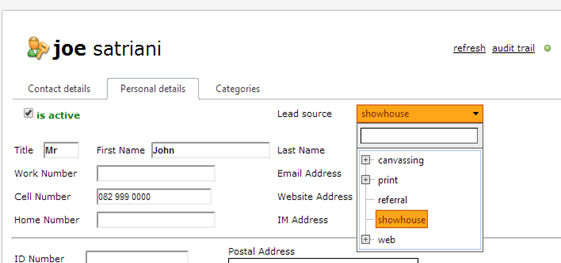
You can now configure your own lead sources for contacts in the OMS. Users will be able to pick the configured lead source types from a dropdown on contacts as shown below: To configure your own set of lead source types, simply go to Setup / Sales Settings / Lead Sources and follow the instructions (as office administrator). You can even create sub categories as indicated below: For groups of offices , a setting is available to configure lead source types for all your offices (enabled by default). Please click on the help & example link on the lead source page.

OMS Updates: brochures & saving profile

Image
The following updates are now available in the OMS: We corrected a problem where the Photo (A4 portrait | residential) brochure split across x2 pages in certain cases where the rates&taxes and levy were both entered: The electrical certificate and agency board fields were corrected on the Full listing brochure (A4 portrait | residential) Some users with personal read only and personal (limited/full) access couldn’t save their profile details including updating their photo. This was corrected. Note, that the OMS only allows office administrators to update individual OMS access level & configuration settings like whether they can run Property Intelligence Reports. Users can however change their own passwords.

Corrections on property notes, brochures P.O.A and office setup

Image
PROPERTY NOTES We’ve corrected a problem with the notes formatting on properties, and should now display your notes correctly: PROPERTY BROCHURES Some property brochures didn’t display a P.O.A correctly (and only a 0), this has been corrected: OFFICE SETUP The office members page will now show all agents/users on a single page to make it quicker to edit for offices with a larger number of agents.

The #NewMyProperty profile pages will give you more exposure – check your office profile photos

Image
The ‪#‎NewMyProperty‬ launch is imminent... with improved profile pages for your office and agents, you will receive a lot more exposure. Make sure you sell a professional image by getting a consistent look-and-feel for your entire office. The new OMS profile upload function will help you achieve this by cropping photos to the correct size – there is even an instructional video: http://productblog.entegral.net/2013/05/improved-profile-photo-upload-with-crop.html  

Improved profile photo upload with crop function

Image
How can you upload the correct size profile photo to the OMS so it shows perfectly on brochures and websites? The latest update on the OMS allows you to do just that. Go to setup and click to upload any of your profile photos - it will automatically show a cropping rectangular window that you can drag anywhere on the photo and resize to find the perfect portfolio photo: Here is a short video showing the process: This exact ratio will be used everywhere on brochures and websites allowing for a consistent look and feel. So if you previously struggled with profile photos on your brochures, upload a new one and see the difference. above image shows a partial screenshot of one of the brochures where the new photo ratio is perfectly implemented.

Forgot password link corrected

Image
The forgot password link on the OMS login screen is now working correctly again. You can also reset your existing password in the OMS, click on Setup / My Profile / User Account. Your password strength will be shown as you type. Make sure you have a ‘strong’ or ‘very strong’ password: